OEM Profile: Edit a Third-Party Login
This dialog box is used to edit the credentials for a supported external provider as follows:
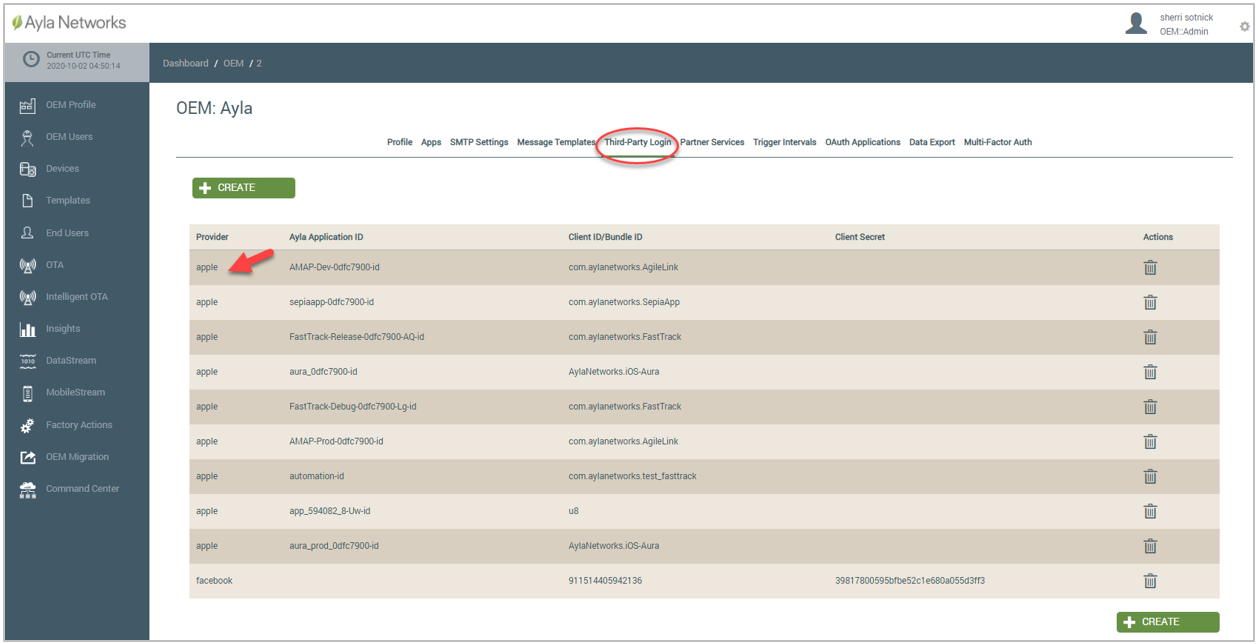
- In the table listing on the Third-Party Login tab, click the provider for which you wish to edit the credentials. Refer to the following example:
- For Provider, change the external provider (who provides the OAuth token during the log-in process). The following are currently supported:
- Apple
If you are editing Apple credentials, complete the following steps. For the other supported providers, proceed to Step 3.
Refer to the following example of the dialog box for the Apple provider:
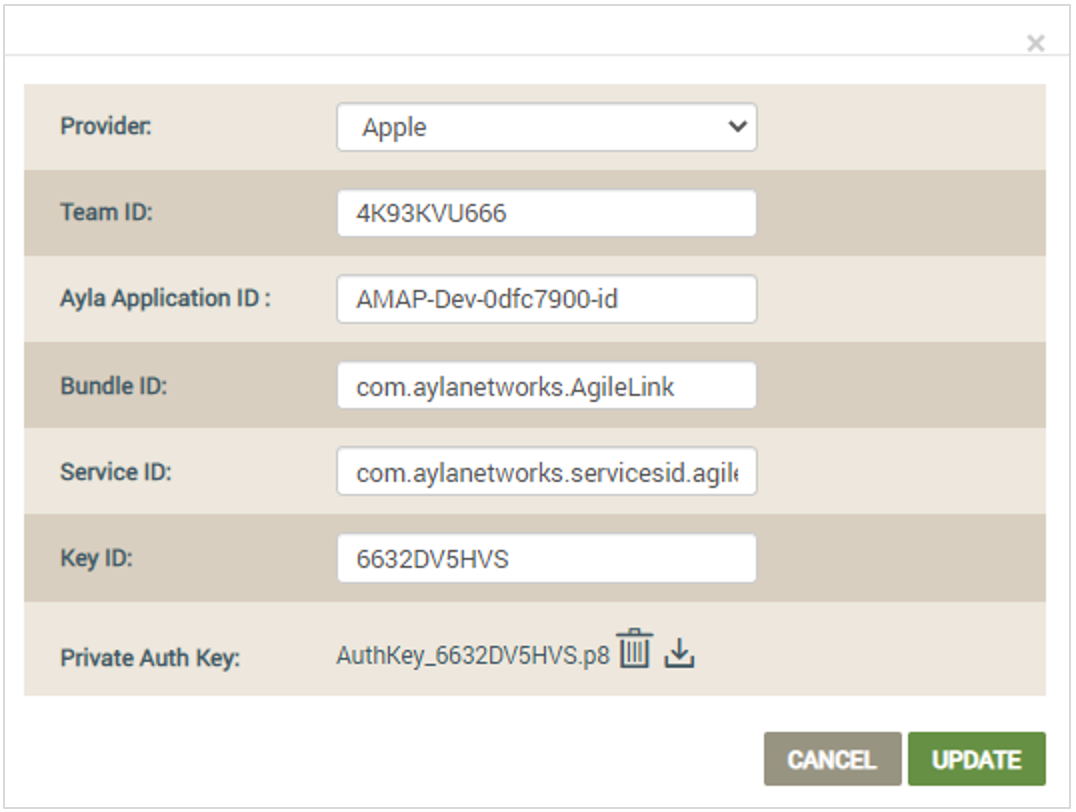
- For Team ID, change this 10-character alphanumeric string that Apple provided when you received the Apple Development Kit. This identifier is generated by Apple and is necessary for automatic signing of your application.
- For Ayla Application ID, change the Ayla-assigned application identifier in the drop-down list that displays when you start to type the ID in this field.
If you do not know the Application ID, click the App tab in the OEM Profile to find it; refer to the example shown below. When you register your application by creating a new app in the dashboard, Ayla assigns the application this unique ID.

- For Bundle ID, change this Apple-required identifier. This ID can vary in character length, and Apple recommends that developers use a reverse domain name notation with the name of your application appended; for example, com.aylanetworks.bundleid.fasttrack. This must be a unique ID, so no two applications have the same Bundle ID. It is used to uniquely identify the application in Apple's ecosystem.
- For Service ID, change Apple-required identifier. This ID can vary in character length, and Apple recommends that developers use a reverse domain name notation with the name of your application appended; for example: 4K93KVU666.com.aylanetworks.FastTrack.
- For Key ID, change this Apple-generated identifier, which you should have requested from your developer account on developer.apple.com. This is a 10-character alphanumeric string, such as PG7T99S8TN. The Key ID is required to download the Apple Client Secret Signing Key, which you upload as the Private Authorization Key in the Ayla Customer Dashboard.
- For Private Auth Key, click the Choose File button to upload a different file with your secret key provided by Apple. Unlike Google or Facebook who give you a string to enter as your secret key, Apple provides a file that our platform uses for authentication when you sign in to the Ayla application using your Apple credentials.
- For Client ID, change this public identifier for the application. This ID is often a 32-character hex string and is unique across all clients that the authorization server handles; for example, 292085223830.apps.googleusercontent.com is an acceptable Google Client ID for OAuth 2.0.
- For Client Secret, change the secret OAuth code. This secret is known only to the application and the authorization server.
- Click UPDATE to add this information to the table listing on Third-Party Login tab, or CANCEL to close the dialog box without saving.
See Also: OEM Profile Third-Party Tab, OEM Profile Apps Tab
How to get here on the dashboard: Click OEM Profile in the Navigation Panel on the left, the Third-Party Login tab, and then the third-party log-in entry you wish to change.
Please click here to let us know how we're doing. Thank you.